Data Batch Processing
Note
This page describes how to perform batch processing in the International Futures model.
The International Futures model
The International Futures (IFs) model is a comprehensive forecasting tool used for scenario analysis, enabling users to explore and shape global futures by examining interactions between human, social, and environmental systems over time. It models long-term change across economies, societies, and the environment, facilitating strategic planning and understanding of possible future outcomes. With a database spanning from 1960 and projections up to 2100, IFs covers 186 countries and forecasts numerous variables, making it an invaluable asset for analysing global policy scenarios and addressing grand challenges. For more details, visit here.
Use of the International Futures (IFs) model within USAID WSSH Data & Analytics program Akvo’s role within the USAID WSSH project, which is led by Segura, includes creating a tool (the WASH Futures Explorer) that helps USAID WASH practitioners to better understand:
The current WASH situation in USAID’s high-priority key countries (HPCs).
The effect of changingWASH investments or policies on the access to Water and Sanitation services.
The effect of changing WASH investments or policies on key health, prosperity, and governance indicators.
Note
For more info regarding the International Futures Model, please check: African Futures Project: Water & Sanitation
Note
Current WASH Futures Explorer: PowerBI Link
Why Batch Processing?
Batch processing refers to the bulk download of data - in this case scenario runs of the IFs model. The desktop version of the IFs model has the ability to do batch processing, which is not possible in the online version. In other words, downloading a large amount of data using the online version is a lengthy process (due to repetitive clicking, and in part because the online version is more error prone). With batch processing, many scenarios can be run simultaneously, thus speeding up the process.
Note
The IFs desktop model runs only on Windows machines and is not compatible with Mac or Linux Operating System.
How to Install the International Futures Model for Batch Processing
Go to IFs Download Page and click on the latest IFs model to download it locally , for example IFs V8.06 (September 2023).
Step 1: Create Scenario Files
A scenario file is a text file (with extension .sce) that describes the scenario to be run in the IFs model. We use 36 scenarios:
Note
High-priority countries include: Dem. Republic of the Congo, Ethiopia, Ghana, Guatemala, Haiti, India, Indonesia, Kenya, Liberia, Madagascar, Malawi, Mali, Mozambique, Nepal, Nigeria, Philippines, Rwanda, Senegal, Sudan South, Tanzania, Uganda, Zambia.
N° |
Scenario (parameter) |
Code |
Description |
|---|---|---|---|
1 |
sanithhbasictrgtyr = 12, shift years = 6 |
FS_ALB_2030 |
Full access to at least basic sanitation services in 2030 |
2 |
sanithhbasictrgtyr = 32, shift years = 6 |
FS_ALB_2050 |
Full access to at least basic sanitation services in 2050 |
3 |
sanithhsafetrgtyr = 12, shift years = 6 |
FS_SM_2030 |
Full access to safely managed sanitation services in 2030 |
4 |
sanithhsafetrgtyr = 32, shift years = 6 |
FS_SM_2050 |
Full access to safely managed sanitation services in 2050 |
5 |
waterhhbasictrgtyr = 12, shift years = 6 |
FW_ALB_2030 |
Full access to at least basic water services in 2030 |
6 |
waterhhbasictrgtyr = 32, shift years = 6 |
FW_ALB_2050 |
Full access to at least basic water services in 2050 |
7 |
waterhhsafetrgtyr = 12, shift years = 6 |
FW_SM_2030 |
Full access to safely managed water services in 2030 |
8 |
waterhhsafetrgtyr = 32, shift years = 6 |
FW_SM_2050 |
Full access to safely managed water services in 2050 |
9 |
(waterhhbasictrgtyr = 12, shift years = 6) & (sanithhbasictrgtyr = 12, shift years = 6) |
FWS_ALB_2030 |
Full access to at least basic water & sanitation services in 2030 |
10 |
(waterhhbasictrgtyr = 32, shift years = 6) & (sanithhbasictrgtyr = 32, shift years = 6) |
FWS_ALB_2050 |
Full access to at least basic water & sanitation services in 2050 |
11 |
(waterhhsafetrgtyr = 12, shift years = 6) & (sanithhsafetrgtyr = 12, shift years = 6) |
FWS_SM_2030 |
Full access to safely managed water & sanitation services in 2030 |
12 |
(waterhhsafetrgtyr = 32, shift years = 6) & (sanithhsafetrgtyr = 32, shift years = 6) |
FWS_SM_2050 |
Full access to safely managed water & sanitation services in 2050 |
N° |
Scenario (parameter) |
Code |
Description |
|---|---|---|---|
13 |
sanithhm = 0.5, basic, total, shift years = 6 |
SI_BS_0_5x |
Increase basic sanitation services by factor 0.5 |
14 |
sanithhm = 2, basic, total, shift years = 6 |
SI_BS_2x |
Increase basic sanitation services by factor 2 |
15 |
sanithhm = 4, basic, total, shift years = 6 |
SI_BS_4x |
Increase basic sanitation services by factor 4 |
16 |
sanithhm = 6, basic, total, shift years = 6 |
SI_BS_6x |
Increase basic sanitation services by factor 6 |
17 |
sanithhm = 0.5, safely managed, total, shift years = 6 |
SI_SM_0_5x |
Increase safely managed sanitation services by factor 0.5 |
18 |
sanithhm = 2, safely managed, total, shift years = 6 |
SI_SM_2x |
Increase safely managed sanitation services by factor 2 |
19 |
sanithhm = 4, safely managed, total, shift years = 6 |
SI_SM_4x |
Increase safely managed sanitation services by factor 4 |
20 |
sanithhm = 6, safely managed, total, shift years = 6 |
SI_SM_6x |
Increase safely managed sanitation services by factor 6 |
21 |
waterhhm = 0.5, basic, total, shift years = 6 |
WI_BS_0_5x |
Increase basic water services by factor 0.5 |
22 |
waterhhm = 2, basic, total, shift years = 6 |
WI_BS_2x |
Increase basic water services by factor 2 |
23 |
waterhhm = 4, basic, total, shift years = 6 |
WI_BS_4x |
Increase basic sanitation services by factor 4 |
24 |
waterhhm = 6, basic, total, shift years = 6 |
WI_BS_6x |
Increase basic water services by factor 6 |
25 |
waterhhm = 0.5, safely managed, total, shift years = 6 |
WI_SM_0_5x |
Increase safely managed water services by factor 0.5 |
26 |
waterhhm = 2, safely managed, total, shift years = 6 |
WI_SM_2x |
Increase safely managed water services by factor 2 |
27 |
waterhhm = 4, safely managed, total, shift years = 6 |
WI_SM_4x |
Increase safely managed water services by factor 4 |
28 |
waterhhm = 6, safely managed, total, shift years = 6 |
WI_SM_6x |
Increase safely managed water services by factor 6 |
29 |
(waterhhm = 0.5, basic, total, shift years = 6) & (sanithhm = 0.5, basic, total, shift years = 6) |
WSI_BS_0_5x |
Increase basic water & sanitation services by factor 0.5 |
30 |
(waterhhm = 2, basic, total, shift years = 6) & (sanithhm = 2, basic, total, shift years = 6) |
WSI_BS_2x |
Increase basic water & sanitation services by factor 2 |
31 |
(waterhhm = 4, basic, total, shift years = 6) & (sanithhm = 4, basic, total, shift years = 6) |
WSI_BS_4x |
Increase basic water & sanitation services by factor 4 |
32 |
(waterhhm = 6, basic, total, shift years = 6) & (sanithhm = 6, basic, total, shift years = 6) |
WSI_BS_6x |
Increase basic water water & services by factor 6 |
33 |
(waterhhm = 0.5, safely managed, total, shift years = 6) & (sanithhm = 0.5, safely managed, total, shift years = 6) |
WSI_SM_0_5x |
Increase safely managed water & sanitation services by factor 0.5 |
34 |
(waterhhm = 2, safely managed, total, shift years = 6) & (sanithhm = 2, safely managed, total, shift years = 6) |
WSI_SM_2x |
Increase safely managed water & sanitation services by factor 2 |
35 |
(waterhhm = 4, safely managed, total, shift years = 6) & (sanithhm = 4, safely managed, total, shift years = 6) |
WSI_SM_4x |
Increase safely managed water & sanitation services by factor 4 |
36 |
(waterhhm = 6, safely managed, total, shift years = 6) & (sanithhm = 6, safely managed, total, shift years = 6) |
WSI_SM_6x |
Increase safely managed water & sanitation services by factor 6 |
In order to generate a scenario file (for example sanithhbasictrgtyr = 12, shift years = 6), follow the next steps:
Open the International Futures (IFs) desktop application.
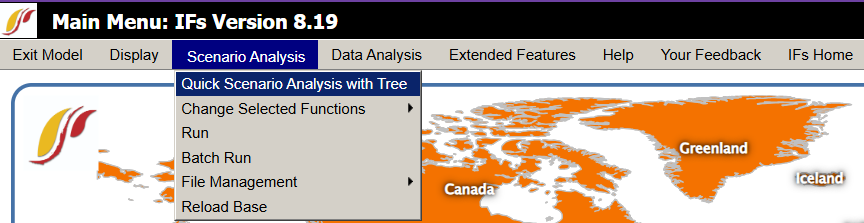
Hover over Scenario Analysis then select *Quick scenario analysis with Tree in the pop-up
Hover over Set Group or Country. Then select Groups.

Select Parameter Search. The following box will appear.
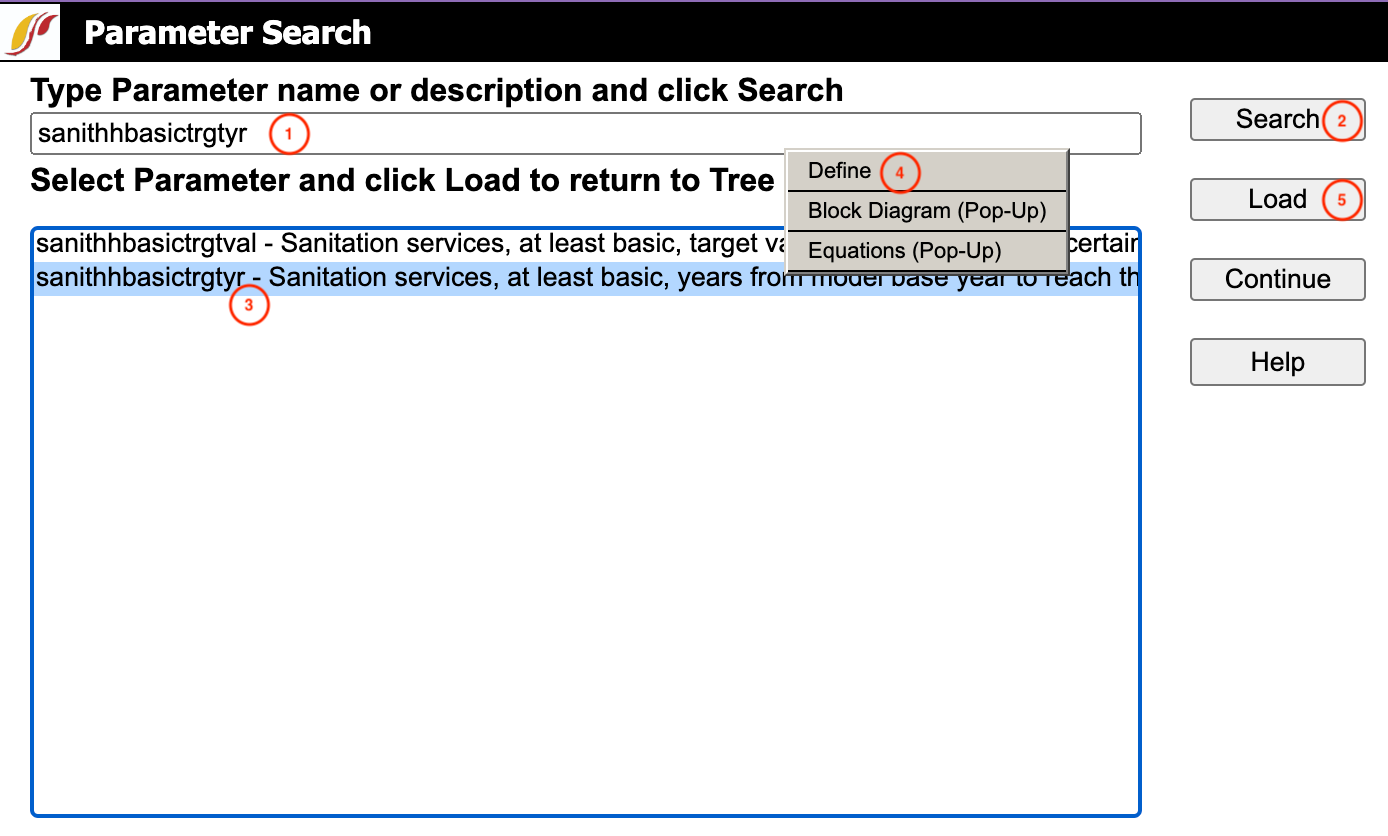
Type the full parameter name or a key word it contains in the box.
Click on Search or press Enter.
Select the correct parameter.
Select Define to see the full description of the parameter.
Click Load.
Select World then Total in the box with the header Please pick a dimension from the dropdown.
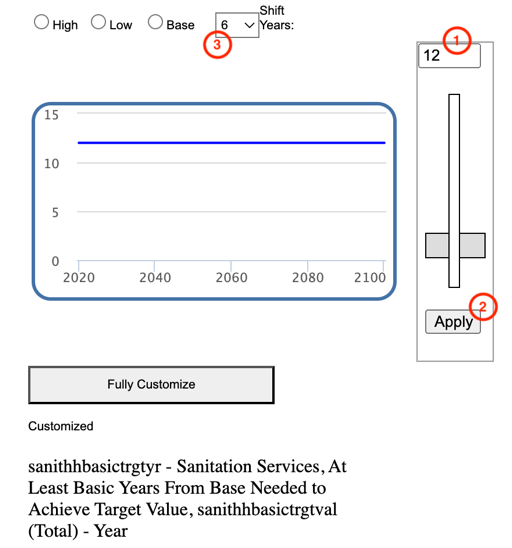
In the window that appears, follow these 3 steps:
Enter the parameter value.
Click on Apply.
Enter 6 in the Shift Years box.
Note
for mixed scenarios (scenarios using more than one parameter), repeat the process for the rest of parameters. Apply steps from (4) to (6).
Save the scenario file by moving the mouse to Scenario Files and clicking on Name and Save.
The following box will appear.
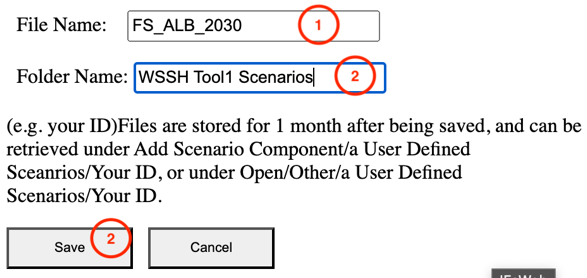
Enter the name of the scenario (remember to limit the number of characters to 12 maximum).
Provide the name of the file where the scenarios should be stored.
Click Save.
Move the mouse to Scenario files then click on Clear tree to come back to the software main menu.
You can now generate a new scenario by repeating the process until you get all scenarios in the same folder.
The folder with the scenarios will be located in C:\Users\…\AppData\Local\IFs\Scenario\a User Defined Scenarios. Both names (folder and scenarios) can be renamed locally and the change will be taken into account automatically when you close and open the IFs software again.
Facultative action but good for scenarios batch management: move the folder one step back. For example, from C:\Users\…\AppData\Local\IFs\Scenario\a User Defined Scenarios to C:\Users\…AppData\Local\IFs\Scenario.
Scenarios generated on one laptop can be used on a different laptop as well. If a bunch of scenarios have already been generated on one laptop, there is no need to generate the same scenarios again. Just copy and paste the scenarios from C:\Users\…\AppData\Local\IFs\Scenario, and the scenarios will be taken into account automatically in the IFs software. You will now be able to process the batch running of these scenarios.
Step 2: Batch Run All Scenario Files
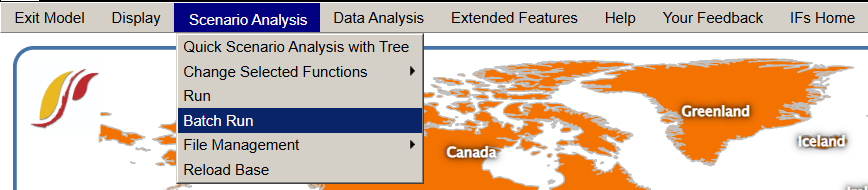
Hover over Scenario Analysis and click on Batch Run.
In the page that appears, follow the steps in the screenshot below:
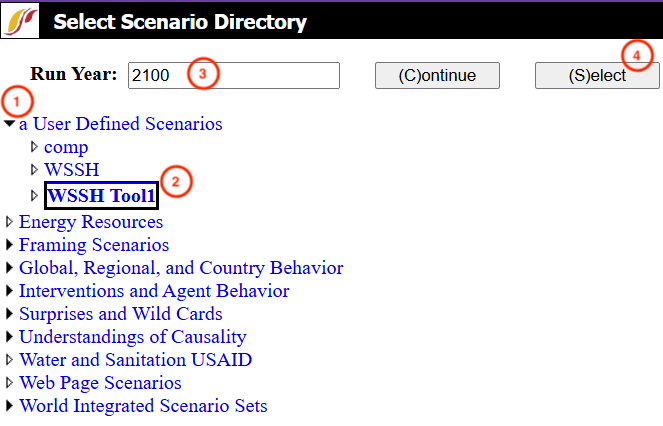
Unfold the folder a User Defined Scenario by clicking in the triangular icon on the left.
Select the scenario of interest.
Change Run Year (the maximum is 2100).
Click on Select
Wait until you see the text International Futures has finished running one or more scenarios/cases. On the screen, click Continue to come back to the software’s main menu.
Step 3: Download the Output Files
For all scenarios, some .csv files have to be generated for all focus indicators. For the WASH Futures Explorer, this is the complete list of indicators we used.
N° |
Indicator Name |
Dimensions to select |
Objective |
|---|---|---|---|
N° |
Indicator name |
Dimensions to select |
Objective |
1 |
Deaths by Category of Cause - Millions |
2nd Dim. = Diarrhea;3rd Dim. = Total |
Decrease |
2 |
Poverty Headcount <$2.15 per Day, Log Normal - Millions |
Decrease |
|
3 |
State Failure Instability Event - IFs Index |
Decrease |
|
4 |
Governance Effectiveness - WB index |
Decrease |
|
5 |
Sanitation Services, Access, percent of population |
2nd Dim. = Basic, Safely Managed; 3rd Dim. = Total |
Increase |
6 |
Sanitation Services, Access, Number of people, million |
2nd Dim. = Basic, Safely Managed; 3rd Dim. = Total |
Increase |
7 |
Sanitation Services, Expenditure, Capital, Billion $ |
2nd Dim. = Basic, Safely Managed; 3rd Dim. = Total |
Increase |
8 |
Water Services, Access, percent of population |
2nd Dim. = Basic, Safely Managed; 3rd Dim. = Total |
Increase |
9 |
Water Services, Access, Number of people, million |
2nd Dim. = Basic, Safely Managed; 3rd Dim. = Total |
Increase |
10 |
Water Services, Expenditure, Capital, Billion $ |
2nd Dim. = Basic, Safely Managed; 3rd Dim. = Total |
Increase |
11 |
GDP (PPP) - Billion dollars |
Increase |
|
12 |
Stunted children, History and Forecast - Million |
Decrease |
|
13 |
Malnourished Children, Headcount - Millions |
Decrease |
To get data for a specific indicator, follow the steps below to get the .csv file.
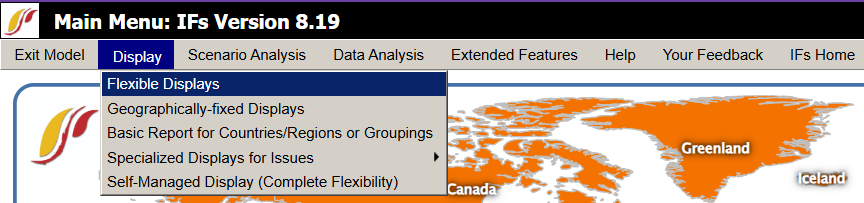
Move the mouse to Display then select Flexible display.
Follow the steps in the screenshot below.
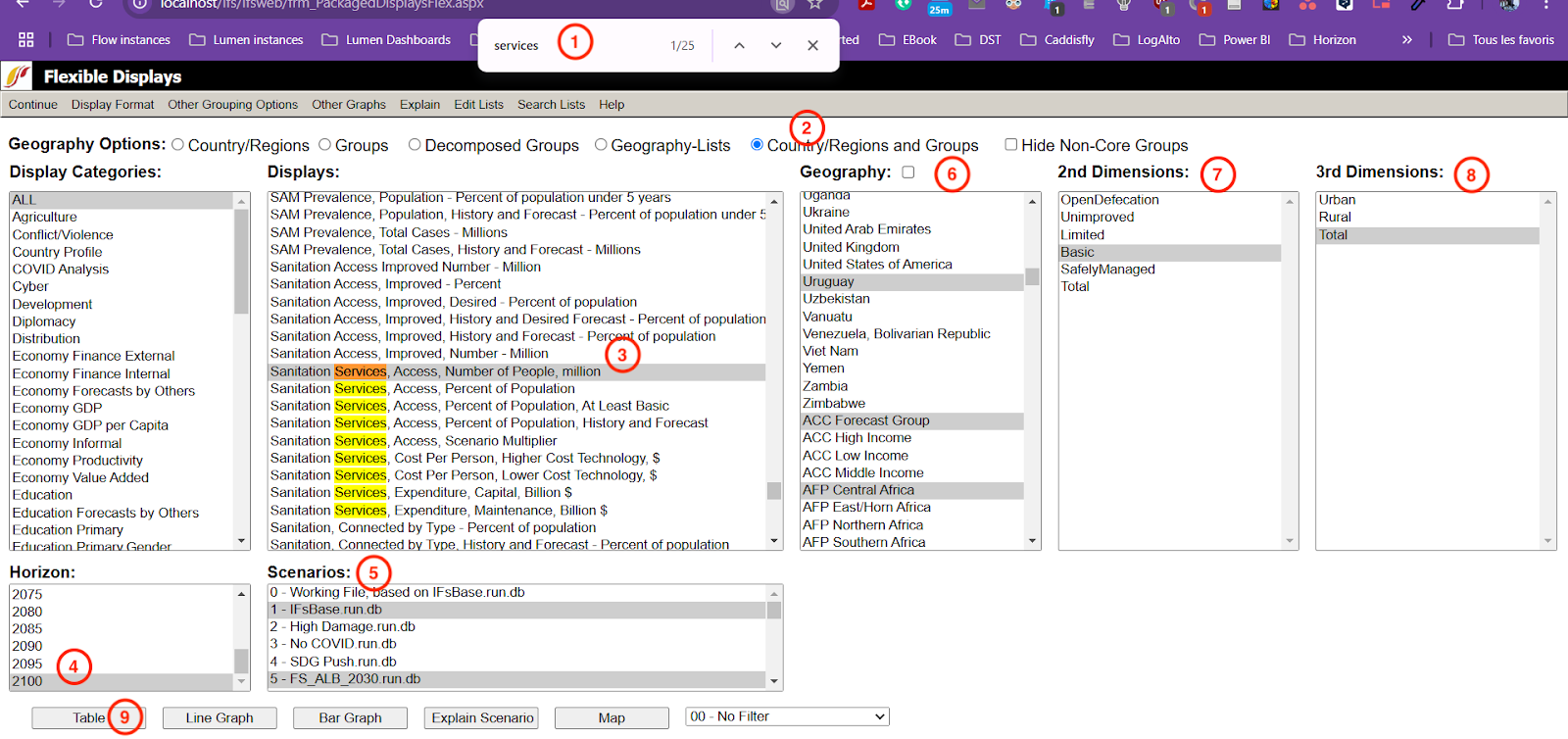
Press CTRL+F on your keyboard and enter the whole name of the indicator or a keyword contained in it.
Select Country/regions and Groups.
Select the focus indicator name.
Select the horizon year for analysis.
Select all focus scenarios. Hold down the CTRL key to select multiple scenarios at once.Do not forget to include the base scenario IFsBase.run.db as all analyses are based on these values.
Select all focus countries. Hold down the CTRL key to select multiple countries at once. Do not forget to include the group of focus countries created before.
Select the focus dimensions (the number of dimensions depends on the indicator selected).
Refer to the table above, specifically the column Dimensions to select.
Click on Table to see the data.
Move the mouse to Save then click Save Normal View. A .csv file will automatically be downloaded into the desktop’s local downloads.
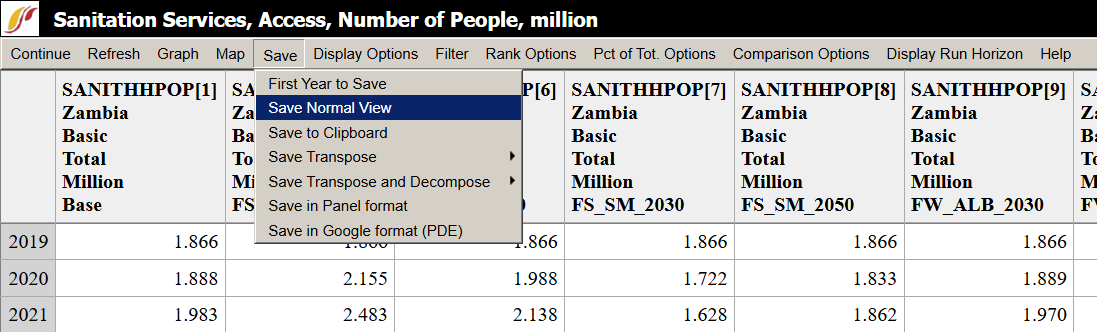
Rename the downloaded file which is ifs.csv by default.
Click on Continue to return to the software’s main menu.
Repeat the same process to get data for the next indicator.